Comparisons
Visual Studio vs Visual Studio Code in 2026: Which One Do You Actually Need?
Visual Studio is a Windows-only full IDE for .NET and C++ teams. VS Code is a free cross-platform editor that handles almost everything else. Here's how to choose in 2026.
| Visual Studio | VS Code | |
|---|---|---|
| Type | Full-featured IDE | Lightweight code editor |
| Best for | .NET, C++, Windows desktop & enterprise | Web dev, Python, JS/TS, any language |
| Platform | Windows only | Windows, macOS, Linux |
| Free tier | Community (restrictions for enterprise orgs) | Always free, open source (MIT) |
| Paid plans | From $45/user/mo (Professional monthly) | None — always free |
| Extensions | ~1,000+ in VS Marketplace | 50,000+ in VS Code Marketplace |
| RAM usage | 1–4 GB+ per session | 100–500 MB typical |
| GitHub Copilot | Built-in with agent mode | Built-in with agent mode |
| Open source | No | Yes (MIT license) |
The short version: Visual Studio is a Windows-only full IDE built for .NET and C++ teams. VS Code is a free, cross-platform editor that handles almost everything else. They share a name and a Copilot integration — but they are designed for completely different workflows. This comparison breaks down what matters: performance, debugging, language support, AI tools, and price.
What is Visual Studio?
Visual Studio is Microsoft’s full-featured IDE, built primarily for .NET and C++ development on Windows. It has been the default tool for enterprise Windows development since 1997. The 2026 version ships with GitHub Copilot baked in — including agent mode that reasons through problems, writes multi-file edits from a single prompt, and iterates on test failures without you leaving the IDE.
Three editions: Community (free, with usage restrictions for large organizations), Professional, and Enterprise. The Community edition is genuinely full-featured — not a stripped-down trial — but Microsoft restricts it to individual developers and non-enterprise organizations defined as fewer than 250 PCs or less than $1M annual revenue.
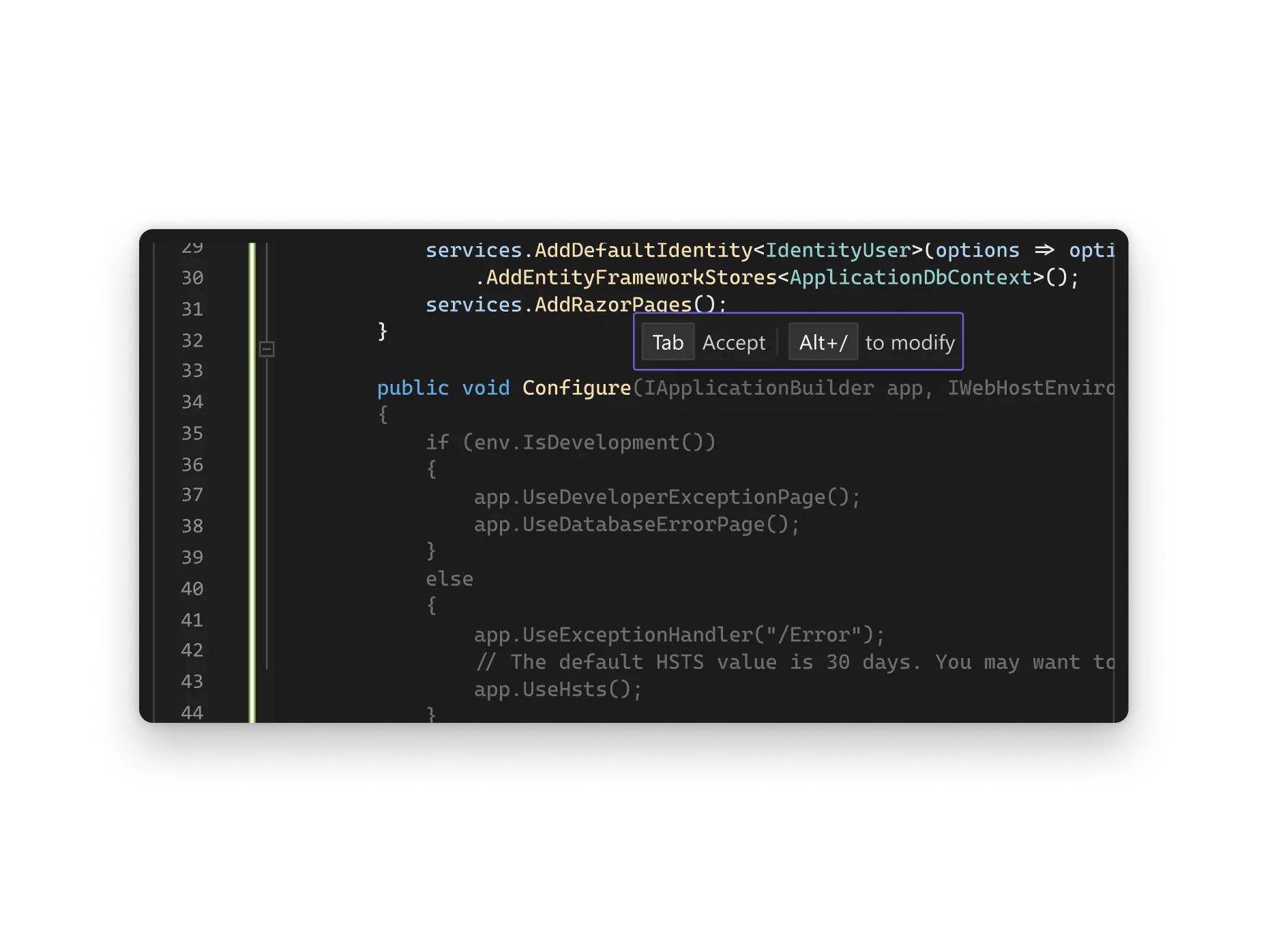
Who it is for: .NET developers, C++ engineers building Windows desktop or game code, teams using Azure DevOps, and enterprise shops where IntelliTrace debugging or Live Unit Testing is worth the subscription.
Who it is not for: Web developers, Python data scientists, TypeScript engineers working on a Mac or Linux machine, or anyone who needs something fast to open and close.
What is VS Code?
VS Code is a free, open-source code editor from Microsoft that runs on Windows, macOS, and Linux. It launched in 2015, went MIT-licensed open source, and now has over 50,000 extensions in its marketplace. It is the most-used developer tool on the planet by most survey measures — used by solo Python hobbyists and multi-team enterprise engineering orgs alike.
VS Code is not an IDE. It is an editor that becomes one through extensions. Install the Python extension and you get IntelliSense, a debugger, and a Jupyter notebook runner. Install the C# Dev Kit and you get .NET-level completions. The core tool stays lean; you add what you need.

Who it is for: Web developers, Python and data science folks, JavaScript and TypeScript teams, remote developers (SSH, dev containers, WSL), and anyone who works across Mac, Windows, and Linux.
Who it is not for: Teams building complex Windows desktop apps who need Visual Studio’s full designer, profiler, and IntelliTrace debugger built in without manual configuration.
Visual Studio vs Visual Studio Code: What’s the Core Difference?
Visual Studio is an IDE — it manages your whole project, build system, database connection, test runner, and profiler in one integrated interface. VS Code is an editor first. Same company, same Copilot integration, different tools for different jobs.
| Dimension | Visual Studio (IDE) | VS Code (Editor) |
|---|---|---|
| Project management | Full solution/project structure (.sln, .csproj) | File/folder based; workspace files optional |
| Build system | MSBuild integrated | Via extensions (tasks.json) |
| Debugger depth | IntelliTrace, snapshot, time-travel debugging | Good for most languages; less deep for .NET/C++ |
| UI/Designer tools | Yes — WinForms, WPF, MAUI visual designers | No visual designers |
| Startup time | 30–90 seconds for large solutions | Under 3 seconds |
| Primary languages | C#, C++, VB.NET, F# | All languages via extensions |
| Platform | Windows only (macOS version retired August 2024) | Windows, macOS, Linux, browser |
The confusion between them is understandable — Microsoft named them poorly. Remember this: Visual Studio is the heavyweight Windows-only IDE. VS Code is the lightweight universal editor.
Platform Support
This is the biggest practical difference. Visual Studio runs on Windows only. Visual Studio for Mac was retired on August 31, 2024. If you are on a Mac or Linux machine today and want Visual Studio features, Microsoft’s recommendation is to run the full IDE in a Windows VM or use VS Code with the C# Dev Kit extension.
VS Code runs everywhere: Windows, macOS, Linux, and in the browser via github.dev or VS Code for the Web. It has a Remote Development extension pack that lets you SSH into a remote server or connect to a Docker container and code as if the files were local — a genuinely transformative feature for backend engineers and DevOps teams.
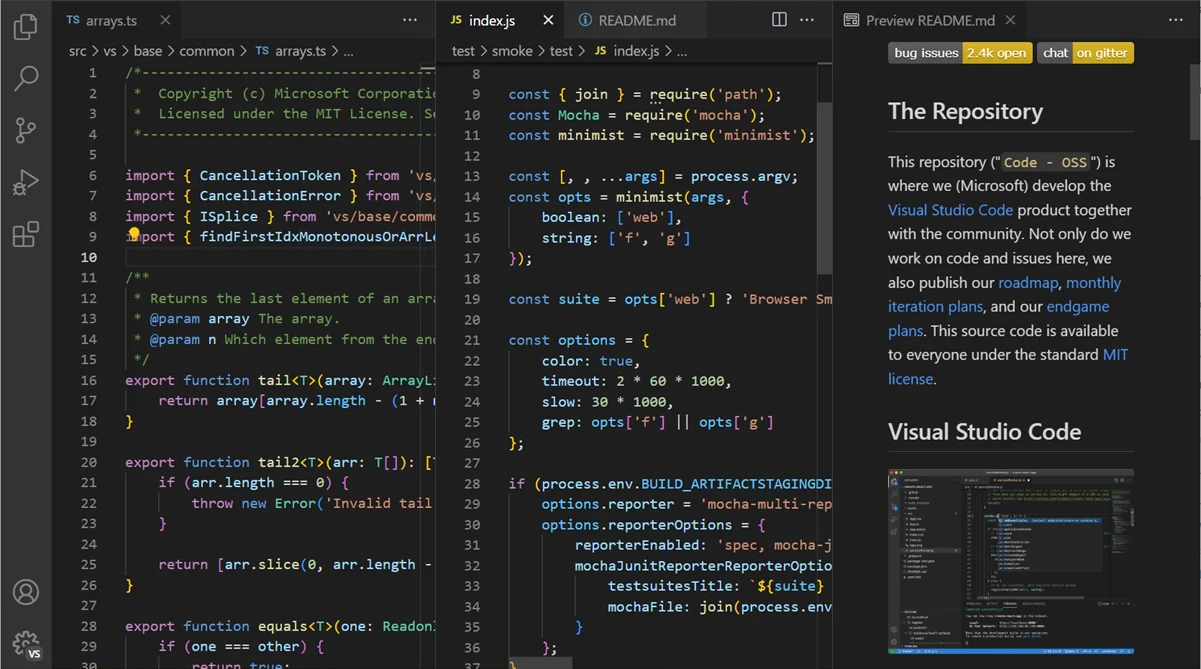
If your team has Windows developers and Mac developers, VS Code standardizes the editing experience. Visual Studio does not.
Language and Framework Support
Visual Studio is built for C#, C++, VB.NET, and F#. It handles these with deep built-in support: IntelliSense that understands your entire .NET solution, refactoring tools, code metrics, and architecture diagrams. For Python, JavaScript, and TypeScript, it has basic extension-based support — but not at the same depth you get in VS Code for those languages.
VS Code covers everything through extensions: Python, JavaScript, TypeScript, Go, Rust, Java, PHP, Ruby, Swift, Kotlin, and thousands more. The Language Server Protocol means any language that has a server can plug in with full IntelliSense, error detection, and go-to-definition.
For .NET specifically: VS Code now has the C# Dev Kit, IntelliCode for C# Dev Kit, and the .NET MAUI extension — all free. These bring core .NET development to VS Code, though Visual Studio still has the deeper debugger and the MAUI visual designer that VS Code lacks.
Performance and Resource Usage
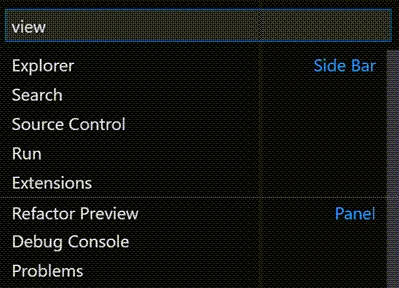
Open VS Code. It is instant. Under 3 seconds on any reasonably modern machine. Memory usage for a typical project: 150–400 MB.
Open Visual Studio with a large .NET solution. Load time varies from 30 seconds to several minutes depending on solution size and plugins installed. Memory usage is easily 1–3 GB for a medium-sized enterprise project.
This is not a knock on Visual Studio — it is loading a LOT more. Build system, test runner, profiler, database connection, visual designers. But you feel the difference every time you open it.

The verdict on performance: VS Code wins decisively for quick edits, scripts, and multi-language projects. Visual Studio is heavier but justified when you are using its full toolkit. If you only use 20% of Visual Studio’s features, you are paying a performance tax for the other 80%.
Debugging Capabilities
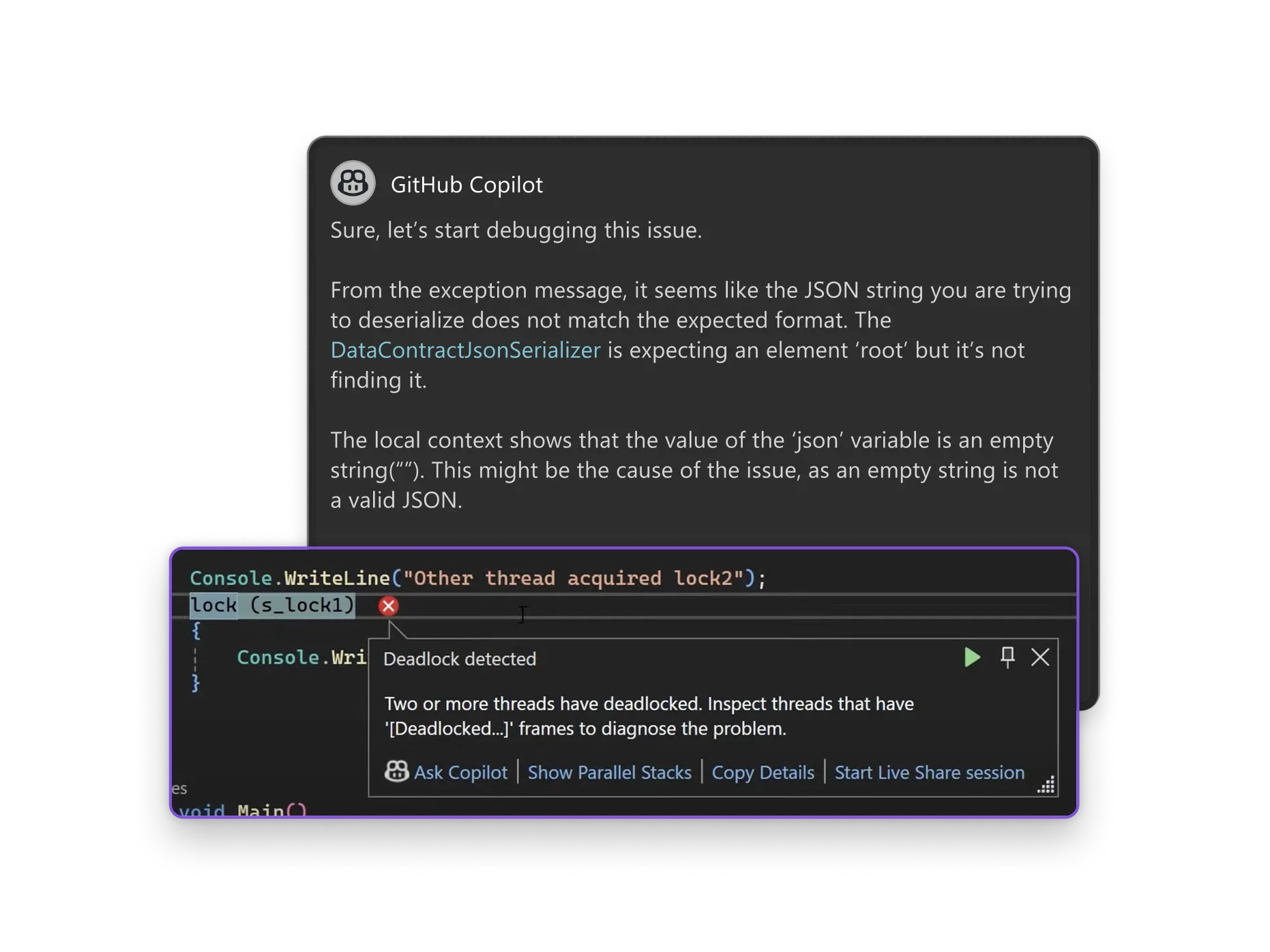
Visual Studio has the most powerful .NET debugger on the market. IntelliTrace lets you record execution history and step backwards in time. Snapshot debugging attaches to live Azure applications without stopping them. Time-travel debugging (preview) captures past states to replay. Code coverage, .NET memory dump analysis, and performance profiling are all built in.
VS Code has a solid debugger through the Debug Adapter Protocol. For Node.js, Python, and browser JavaScript, it is excellent — breakpoints, watch expressions, call stacks, variable inspection. For .NET in VS Code, debugging through the C# Dev Kit works well for most scenarios but does not offer IntelliTrace, snapshot debugging, or time-travel.
Who wins: Visual Studio for .NET/C++ debugging, by a wide margin. VS Code for everything else.
Extensions and Marketplace
VS Code’s marketplace has 50,000+ extensions. Visual Studio’s marketplace has around 1,000+. That gap tells you something about ecosystem health and developer community investment.

Visual Studio extensions are deeper integrations: ReSharper for code analysis, enterprise code coverage tools, Azure-specific tooling. The ecosystem is smaller but high quality, focused on Windows/.NET/C++ use cases.
VS Code extensions cover everything: linters, formatters, language support, database GUIs, REST clients, Jupyter notebooks, remote development, Docker management, Kubernetes tooling. If you have seen a developer productivity tool in the last five years, there is probably a VS Code extension for it.
AI and GitHub Copilot Integration
Both tools have GitHub Copilot built in, and both include agent mode as of 2026. Agent mode reasons through multi-step problems, runs linters and tests, applies changes across files, and iterates on errors — from a single natural language prompt. GitHub Copilot Free gives 2,000 code completions and 50 chat messages per month on both tools.
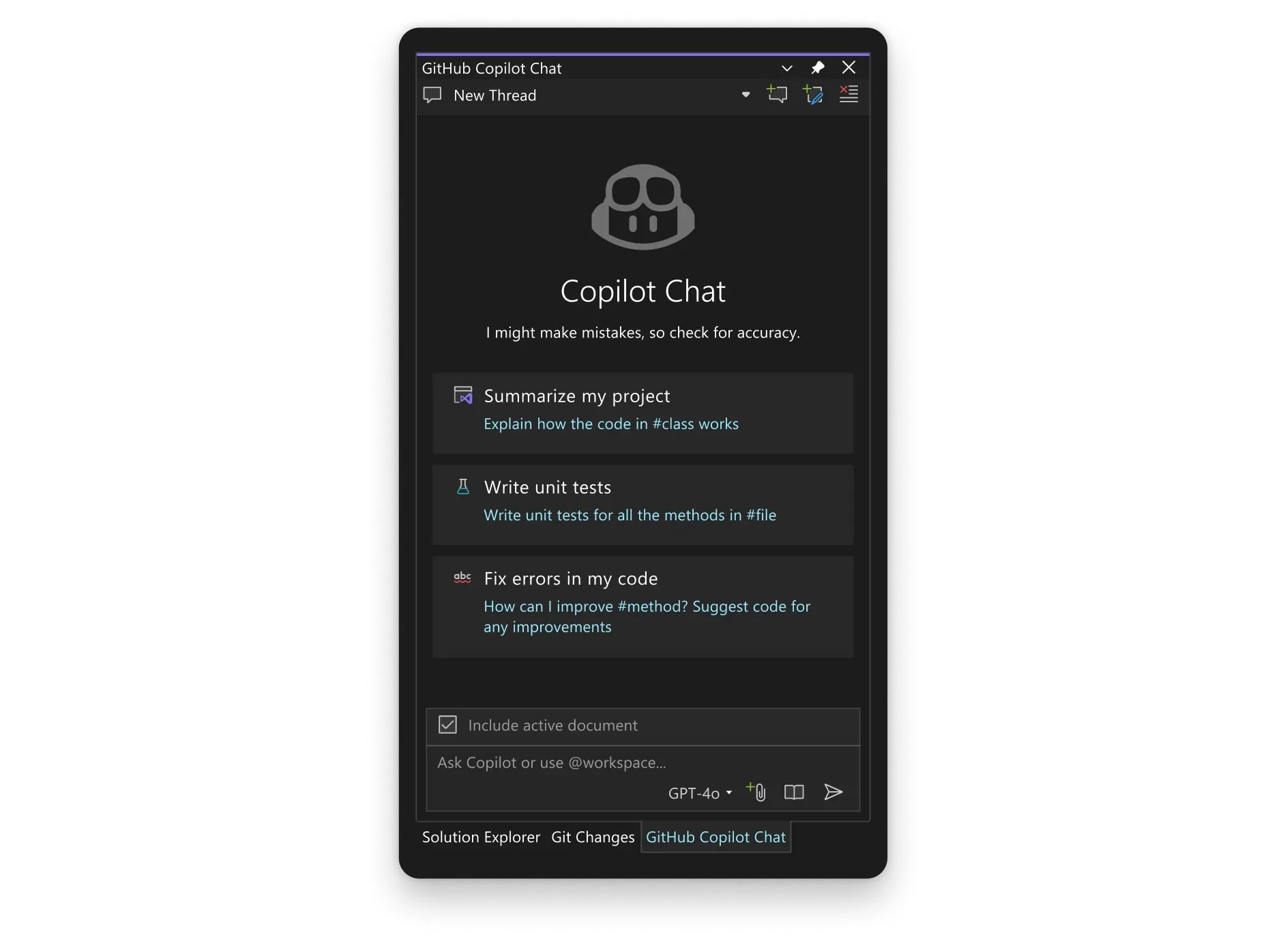
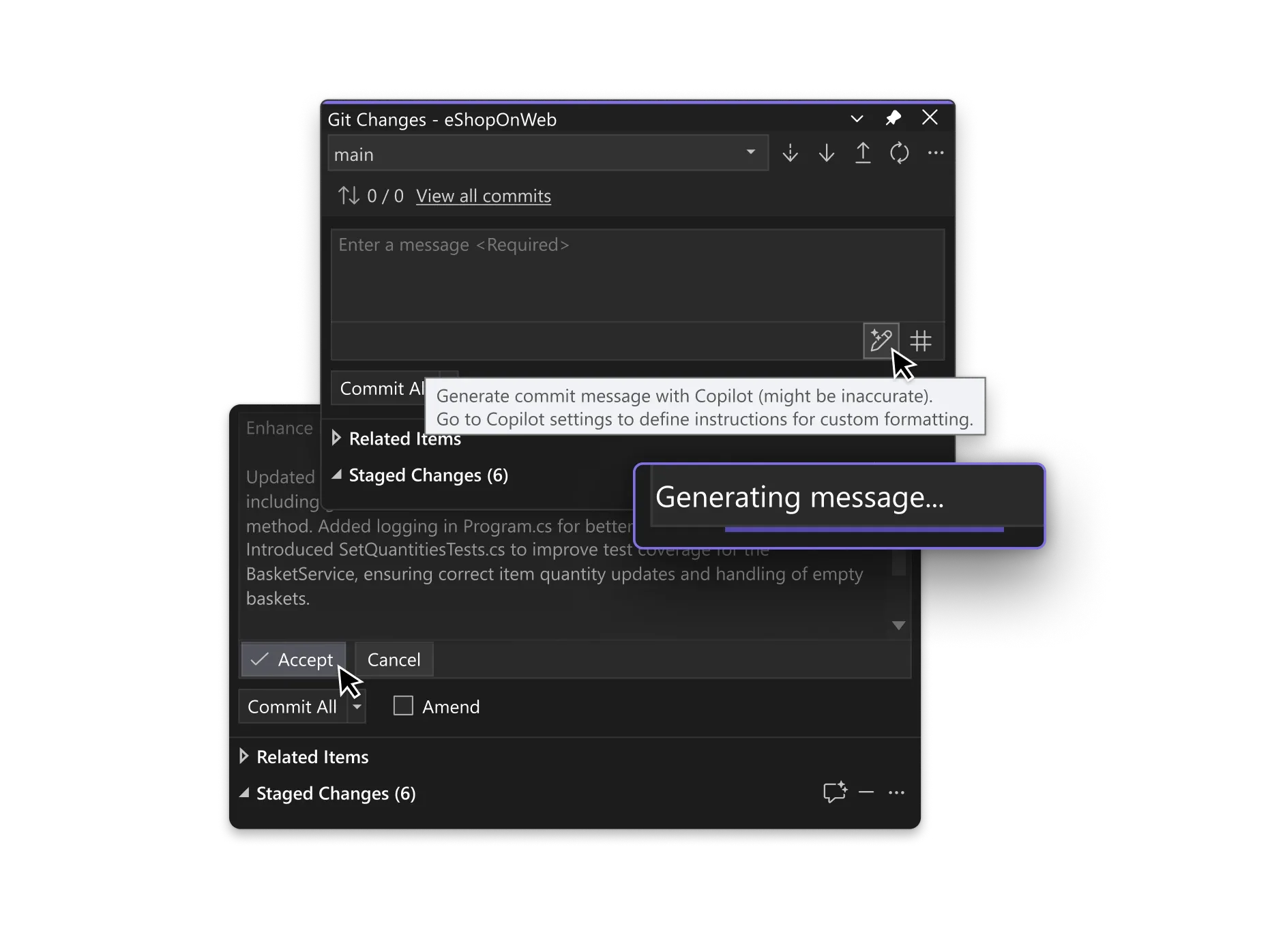
Visual Studio’s Copilot integration is deeper for .NET-specific scenarios: AI-generated commit messages, AI-assisted test generation, and debugging with Copilot explaining exceptions and suggesting fixes. The agent mode in Visual Studio 2026 can plan, build, test, and fix code from a single prompt, run commands, and iterate on errors without leaving the IDE.

VS Code’s Copilot integration is equally capable for the languages it handles. For web and Python development, the AI assistance in VS Code is at least as good as Visual Studio’s, and in some extension-heavy workflows it is arguably better. Both tools support model switching so you can pick the AI model best suited for each task.
Pricing — as of November 2026
Pricing verified from Microsoft’s official Visual Studio pricing page on November 8, 2026.
VS Code Pricing
VS Code is free. No paid tier, no freemium model, no limits. It is MIT-licensed and open source. GitHub Copilot has a free tier (2,000 completions/month) and paid plans through GitHub — but the editor itself costs nothing.
Visual Studio Pricing
| Edition | Monthly price | Annual standard | Renewal rate (annual) |
|---|---|---|---|
| Community | Free | Free | Free |
| Professional (monthly) | $45/user/mo | — | — |
| Professional (annual standard) | — | $99.99/user/mo (billed annually) | $66.59/user/mo |
| Enterprise (monthly) | $250/user/mo | — | — |
| Enterprise (annual standard) | — | $499.92/user/mo (billed annually) | $214.09/user/mo |
| Professional standalone IDE | — | $499 one-time (perpetual) | — |
Annual standard plans include Azure DevOps, monthly Azure credits ($50 for Professional, $150 for Enterprise), Pluralsight training, and other Microsoft services. Monthly plans are IDE-only. The Community edition is free but restricted: enterprises (more than 250 PCs or $1M+ annual revenue) can only use it for open source projects, classroom learning, and academic research — not commercial development.
Decision Guide: Which One Is Right for You?
Choose Visual Studio if…
- You are building .NET applications for Windows (WinForms, WPF, WinUI, MAUI)
- You are doing C++ development for games or Windows system software
- You need IntelliTrace, snapshot debugging, or time-travel debugging for production issues
- Your team is deep in the Microsoft/Azure ecosystem with Azure DevOps pipelines
- You need visual designers for WPF or Windows Forms layouts
- You are in an enterprise running more than 250 PCs and cannot use the Community edition
Choose VS Code if…
- You are doing web development (JavaScript, TypeScript, React, Vue, Angular, Node.js)
- You write Python — for data science, machine learning, scripting, or backend APIs
- You are on a Mac or Linux machine (VS Code is the only current Microsoft-supported option)
- You need remote development: SSH, Docker containers, WSL
- You switch between languages on the same machine
- You want something that opens in under 3 seconds
- You want .NET development without being locked to Windows (C# Dev Kit)
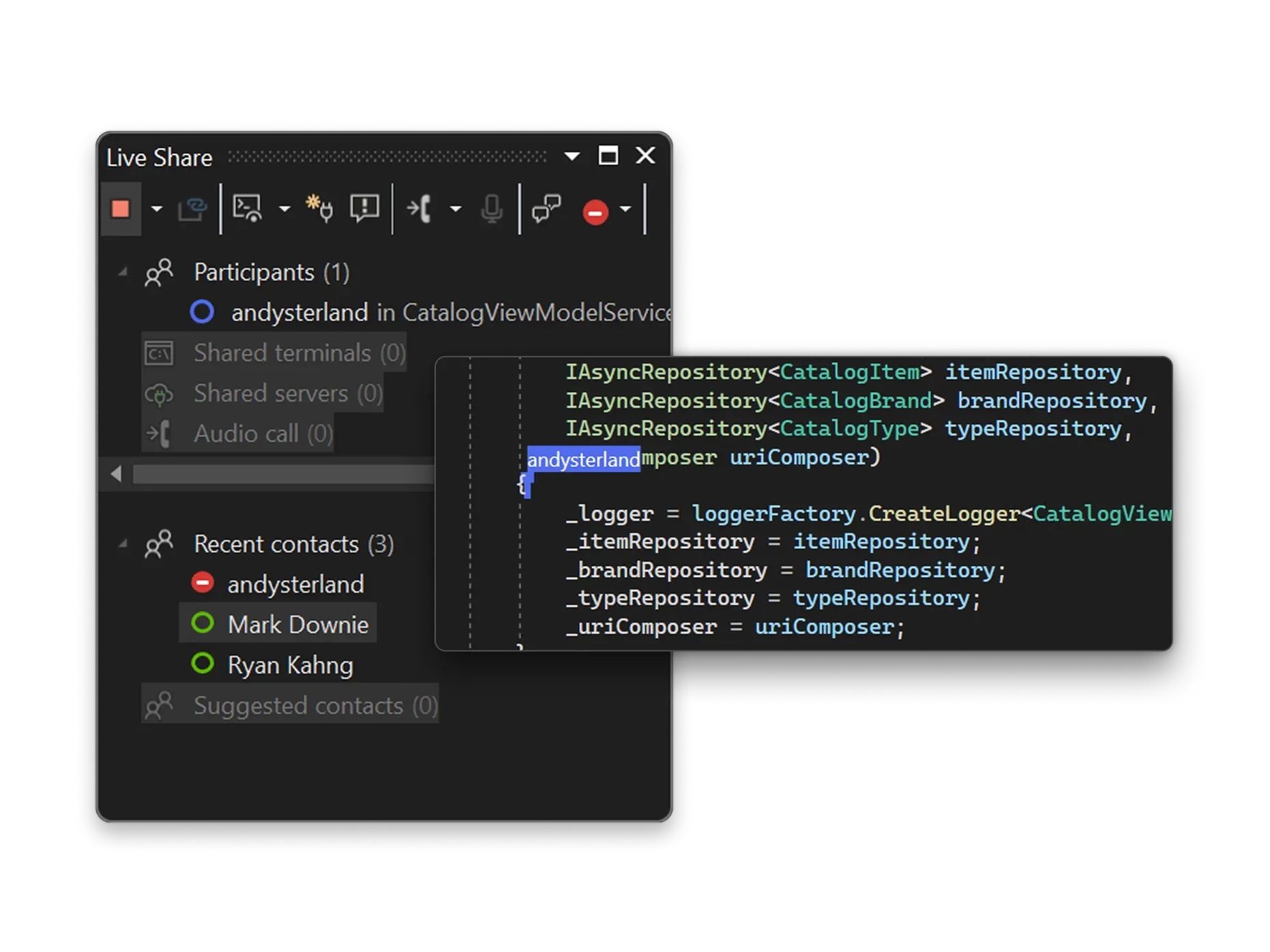
Both tools now have Live Share for real-time collaboration, so if your team does a lot of pair programming, that is no longer a deciding factor. For teams comparing other developer tooling decisions — like whether to use Linear or Jira for project management — the same framework applies: specialized depth versus cross-team flexibility. See our Linear vs Jira comparison for software teams if that decision is on your list too.
Verdict
The right answer is not “it depends.” The right answer is: what are you building, and what machine are you on?
If you are building a .NET enterprise application with a Windows dev team, using Azure DevOps, and need production-level debugging tools — Visual Studio is the tool. The Professional or Enterprise subscription is worth it for teams that actually use the full toolkit.
If you are a web developer, a Python engineer, a TypeScript team, a solo developer on a Mac, or a backend engineer doing remote development — VS Code is the right choice. It handles everything through extensions, it is free, it is fast, and it is the tool the majority of the developer world has standardized on.
They are not really competitors. Visual Studio is best-in-class for one specific use case. VS Code is excellent for almost everything else.
FAQ
Can I use Visual Studio Code for .NET development?
Yes. Install the C# Dev Kit extension, IntelliCode for C# Dev Kit, and the .NET MAUI extension if needed. You will get IntelliSense, debugging, and test running for .NET projects in VS Code. The experience is good, though it does not include Visual Studio’s IntelliTrace, snapshot debugging, or visual designers for WinForms or WPF.
Is Visual Studio Community free for commercial use?
It depends on your organization size. Individual developers, open source contributors, students, and non-enterprise organizations (fewer than 250 PCs and less than $1M annual revenue) can use Visual Studio Community for commercial development. Enterprise organizations are restricted to academic, open source, and classroom use only.
Does Visual Studio run on Mac?
No. Visual Studio for Mac was retired on August 31, 2024. Microsoft’s recommendation for .NET development on macOS is now VS Code with the C# Dev Kit extension.
What is the difference between Visual Studio and Visual Studio Code for beginners?
Start with VS Code if you are learning to code. It is free, works on any operating system, and handles every language a beginner would use. Visual Studio makes sense only if you are specifically learning .NET or C++ development as part of a Windows-focused curriculum.
Do both tools have GitHub Copilot?
Yes. Both Visual Studio and VS Code have GitHub Copilot built in as of 2026, including agent mode. The free tier gives 2,000 code completions and 50 chat messages per month. Copilot’s paid plans are managed through GitHub and work on both tools.
Is VS Code really an IDE?
By strict definition, VS Code is a code editor, not an IDE. But with the right extensions, it functions like one — IntelliSense, debugging, test running, version control, build tasks. The practical difference has narrowed significantly. For most developers, calling VS Code an IDE is close enough to true.