Comparisons
Canva vs Figma for Non-Designers (2026): Which One Actually Works?
Last updated: October 2026 The short version: You need to make something look good. Not because you're a designer. You're not. You're a marketer, a founder, a project manager, or someone who got handed a task that ends with "and make it look nice." Two names keep coming up: Canva and Figma. They both sound […]
Last updated: October 2026
The short version:
You need to make something look good.
Not because you’re a designer. You’re not. You’re a marketer, a founder, a project manager, or someone who got handed a task that ends with “and make it look nice.”
Two names keep coming up: Canva and Figma. They both sound like design tools. They both have free plans. They’re both used by millions of people.
But they are NOT the same thing. Using the wrong one will cost you hours you don’t have.
Here’s exactly what you need to know — and a clear verdict at the end.
- Quick Verdict
- How We Compared
- Full Comparison Table
- Canva: What Non-Designers Actually Get
- Figma: The Power Tool (That Takes Real Work to Unlock)
- Ease of Use
- Templates and Assets
- AI Features
- Collaboration
- Pricing: What You’ll Actually Pay
- Who Should Use Which
- FAQ
- The Verdict
Quick Verdict
| Canva | Figma | |
|---|---|---|
| Best for | Non-designers, marketers, small business, social media | UI/UX designers, product teams, app builders |
| Learning curve | Minimal — usable in 10 minutes | Steep — plan for a week of tutorials |
| Free plan | Yes (very generous) | Yes (3 files, limited features) |
| Paid from | $15/month billed annually | $12/seat/month billed annually |
| Templates | 3.6M+ on paid plans | Hundreds (community-made) |
| Prototyping | Presentation-style only | Full interactive prototyping |
| AI features | Magic Studio (very capable) | Figma AI (useful for designers) |
| G2 rating | 4.65 / 5 | 4.62 / 5 |
| Winner for non-designers | ✓ Yes | Only if your team requires it |
How We Compared
We ran both tools through tasks that non-designers actually face:
- Creating a social media post from scratch
- Building a simple slide deck for a pitch
- Designing a one-page flyer for an event
- Collaborating with a team member on edits
- Exporting files in usable formats
We also dug into actual pricing pages (as of October 2026), user reviews on G2 and G2 Figma, and third-party benchmarks. No fluff. Real tasks. Real data.
Full Comparison Table
| Feature | Canva | Figma |
|---|---|---|
| Templates | 3.6M+ (paid), ~250K free | Hundreds (community-built) |
| Stock media | 141M+ photos, videos, audio | None built-in |
| AI tools | Magic Studio: resize, background removal, text-to-image, AI video | Figma AI: layer naming, search, first drafts |
| Vector editing | Basic freehand tools | Full professional pen tool + vector networks |
| Prototyping | Basic slide transitions | Interactive flows, variables, user testing |
| Developer handoff | None | Dev Mode: CSS, SwiftUI, Android Compose |
| Mobile app | Full editing on iOS + Android | View and comment only |
| Real-time collab | Yes (shared links + comments) | Yes (simultaneous editing + FigJam) |
| Plugins | ~1,300 | ~1,800 |
| Export formats | PNG, JPG, PDF, MP4, GIF | PNG, SVG, PDF, code snippets |
| Video + animation | Built-in, powerful | Very limited |
| Whiteboarding | Limited | FigJam (excellent) |
| Offline use | Very limited | None |
| Design systems | Brand Kits (good for teams) | Full component libraries + tokens |
Canva: What Non-Designers Actually Get
Canva was built for exactly one type of person: someone who needs professional-looking output and has zero patience for a learning curve.
You open Canva. You see thousands of templates organized by type — Instagram post, pitch deck, flyer, resume. You pick one. You click the text to change it. You drag in a new photo. You hit Download.
That’s it. That’s the entire experience for most non-designers.
Canva’s killer advantage: 3.6 million templates on paid plans. This is not a small number. It means whatever you need to make, someone has already built a beautiful starting point for it.
The stock media library is enormous — over 141 million photos, videos, and audio tracks. You rarely need to leave Canva to find assets.
The AI tools (called Magic Studio) are genuinely useful:
- Magic Resize: Reformats a design for every platform in about 30 seconds. The same task in Figma would take 20+ minutes.
- Background Remover: One click. Works well on most photos.
- Magic Write: AI-generated copy for captions, headlines, and descriptions.
- Text-to-Image: Generate original visuals when you can’t find stock photos that work.
Canva’s mobile app is a genuine standout. Full editing — not just viewing — on iOS and Android. If you need to finish a design from your phone on the subway, Canva lets you do it.
One real limitation: Canva’s designs can look “Canva-ish.” When you’re using the same template as thousands of other people, originality takes effort. You have to actually customize things. And Canva’s more complex design capabilities — precise layouts, vector illustration, responsive web design — are limited.
Also: the free plan is surprisingly good, but Canva has quietly moved many templates and features to paid plans over the past two years. Budget for at least the Pro plan if you use it regularly.
Watch: Canva Tutorial for Non-Designers
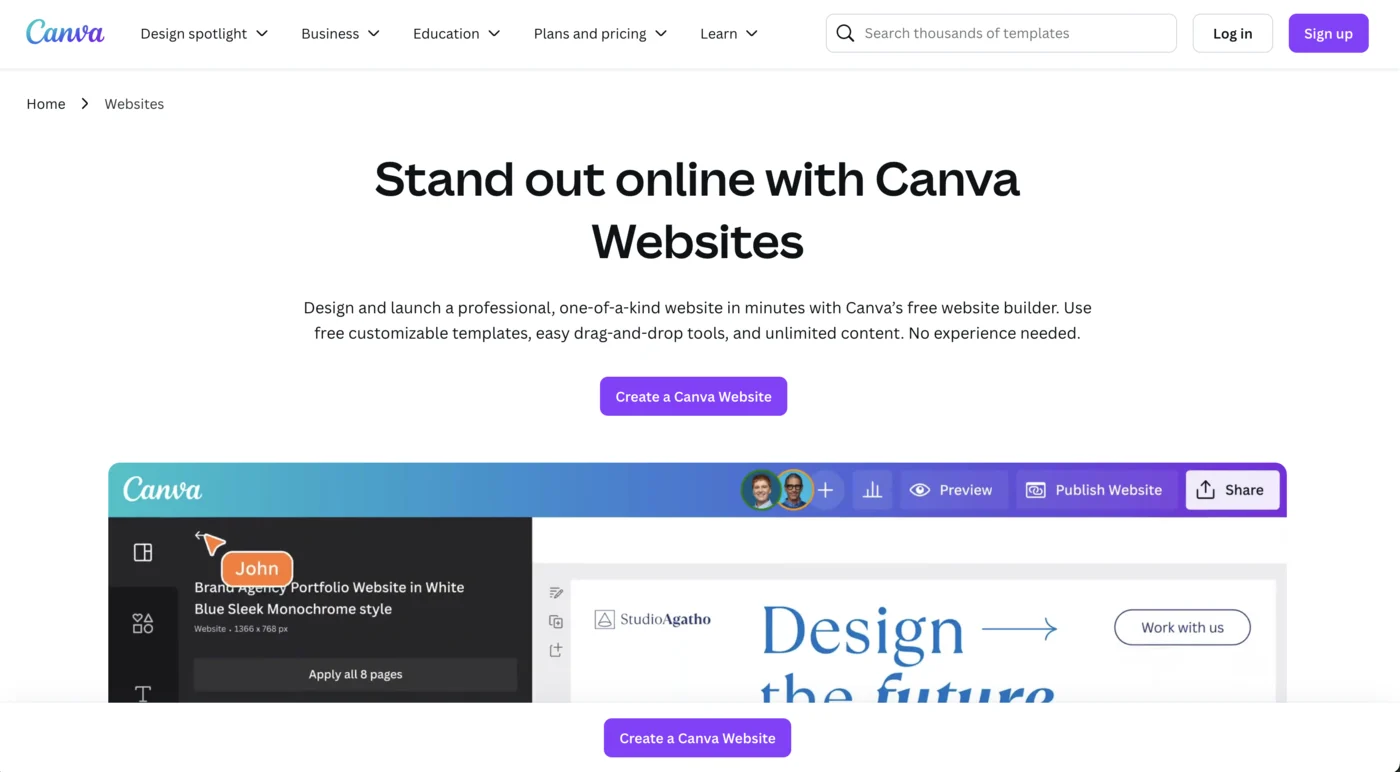
Canva verdict: If you’re making marketing content, social posts, decks, or anything visual that isn’t a software interface, Canva is the tool you want. Fast. Approachable. Powerful enough for 95% of non-designer tasks.
For more on visual design tools for non-designers, see our comparison of Webflow vs Framer for website building.
Figma: The Power Tool (That Takes Real Work to Unlock)

Figma starts with a blank canvas and a toolbar. There are no templates loaded by default. There are no stock photos. There is no “drag a pretty thing here” button.
This is intentional. Figma was designed for professional UI/UX designers who build digital products. It assumes you understand design principles, layer structures, and component-based workflows.
For those designers, Figma is extraordinary. It has:
- Professional vector tools — a full pen tool, boolean operations, vector networks, and precise node editing
- Interactive prototyping — build clickable mockups that simulate real app flows, including variables and conditional interactions
- Design systems — shared component libraries, design tokens, and auto-layout that makes maintaining a consistent brand across a product team genuinely manageable
- Developer handoff (Dev Mode) — engineers can inspect any element and get CSS, iOS (SwiftUI), or Android (Compose) code automatically
- FigJam — an excellent whiteboarding tool included with the account
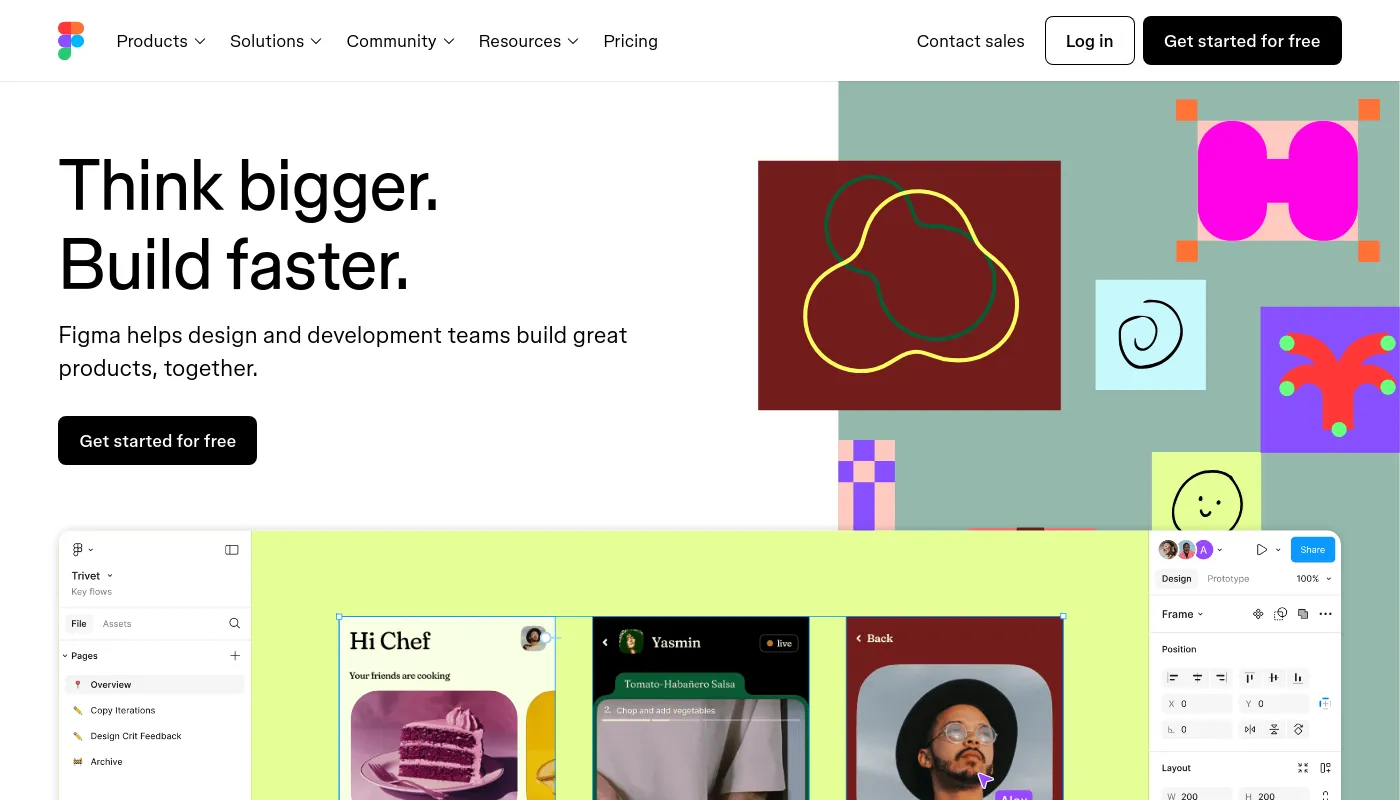
For non-designers working with product teams, Figma is relevant in one specific context: if your team’s designers use Figma, you’ll need to view, comment on, or approve designs in Figma. The good news: viewer and commenter access is free on paid plans. You don’t need to learn the tool deeply — just know how to navigate the files, leave a comment, and approve a screen.
The learning curve for actual editing is steep. Third-party benchmarks timed a simple social media post at 8 minutes and 20 seconds in Figma. The same task took 2 minutes and 45 seconds in Canva. That gap widens when you’re new to the tool.
Figma also lacks several things non-designers rely on:
- No built-in stock image library
- No video or animation tools (beyond simple transitions)
- No mobile editing (view and comment only on phones)
- Templates are limited and mostly community-made, not curated
For a direct comparison of Figma against its closest competitor in the professional design space, check out our Figma vs Adobe XD breakdown.
Watch: Figma Tutorial for Beginners

Figma verdict: A professional tool that rewards expertise. If you’re a non-designer who needs to make marketing content, Figma will frustrate you. If you’re a non-designer who wants to learn UI/UX — or you’re working daily alongside product designers — Figma is worth the investment to learn.
Ease of Use
Winner: Canva — and it’s not close.
Canva’s interface is organized around what you want to make. You pick a format, pick a template, customize it. The drag-and-drop system is intuitive. The toolbar is simple. Canva has a dedicated “Learn” tab with quick tutorials. Most people are productive in Canva within 15 minutes of signing up.
Figma opens to a blank canvas. The toolbar is minimal and the keyboard shortcuts are essential — but you have to look them up. Features like Auto Layout, constraints, and component variants require tutorials to understand. Most non-designers take days to feel comfortable in Figma.

Capterra users rate Canva’s ease of use at 4.7/5 and Figma’s at 4.5/5. The gap is small, but it represents a very different type of user: Figma users are mostly designers who find it intuitive because they understand design tools.
Templates and Assets
Winner: Canva by a significant margin.
Canva has over 3.6 million templates on paid plans, organized by format and industry. Presentations, social posts, resumes, invoices, menus, flyers — there is a starting point for almost anything you need to make.
Figma’s template library is modest. Most templates are community-built and vary wildly in quality. Figma is not a template-driven tool — it expects you to build from components and design systems, not pre-made layouts.
On stock media: Canva bundles over 141 million photos, videos, and audio tracks. Figma has none built-in. You bring your own.
AI Features
Winner: Canva for non-designers. Figma for design teams.
Canva’s Magic Studio suite is genuinely impressive for the non-designer use case: instant background removal, AI-generated images, text-to-copy, one-click format resizing, and AI-assisted video editing. These are features you’ll actually use every week.
Figma AI is useful for designers: automatic layer naming, searching for design elements, and AI-assisted first drafts for UI screens. These features are valuable for people who already know Figma well. They don’t make the tool easier for newcomers.
Collaboration
Both tools are strong here — for different reasons.
Canva’s collaboration is simple and team-friendly: share a link, invite by email, leave comments, tag teammates. The Brand Kit feature lets you lock down fonts, colors, and logos so anyone on the team stays on-brand. This is huge for distributed marketing teams where multiple people are creating assets.
Figma’s collaboration is deeper and more powerful. Multiple designers can edit the same file simultaneously with live cursor tracking. The version history is comprehensive. FigJam enables real-time whiteboarding for planning sessions. For design teams building products, Figma’s collaboration model is industry-standard.
For non-design teams — marketing, ops, sales — Canva’s collaboration is more than enough. And it’s easier for the whole team to adopt.
Pricing: What You’ll Actually Pay
Pricing as of October 2026. Verify current rates at each vendor before purchasing.
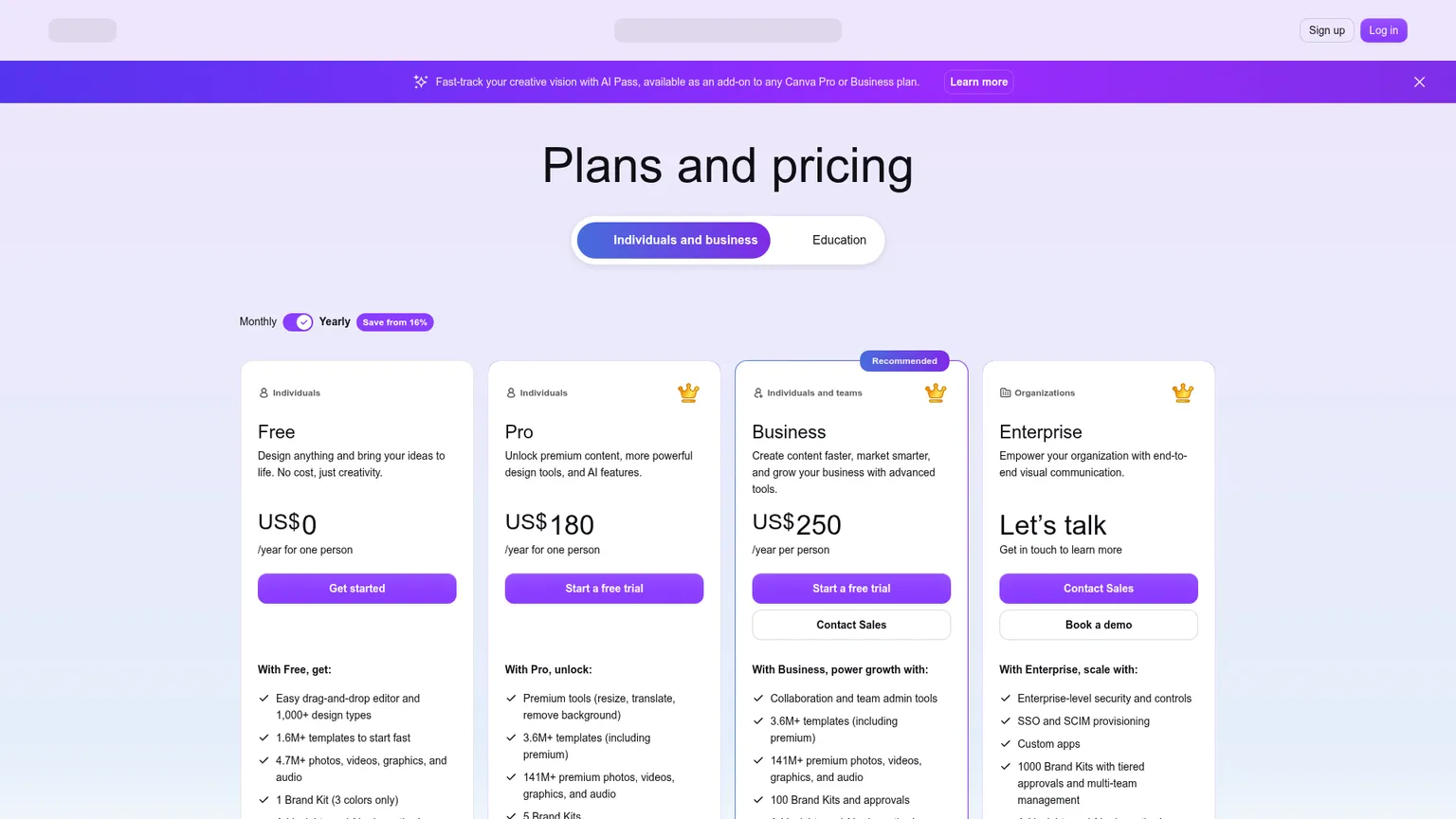
Canva Pricing
| Plan | Price | What you get |
|---|---|---|
| Free | $0 | ~250K templates, basic tools, 5GB storage |
| Pro | $15/month (billed annually) or $18/month | 3.6M+ templates, 141M+ assets, AI tools, Brand Kit, background remover |
| Business | $21/user/month (billed annually) | Everything in Pro + approval workflows, 100 Brand Kits, SSO |
| Enterprise | Custom | Custom apps, dedicated support, advanced security |
Figma Pricing
| Plan | Price | What you get |
|---|---|---|
| Starter | $0 | 3 Figma files, 3 FigJam files, unlimited personal drafts, unlimited viewers |
| Professional | $12/editor/month (billed annually) | Unlimited files, version history, team libraries |
| Organization | $55/editor/month | Single SSO, org-level design systems, advanced analytics |
| Enterprise | $90/editor/month | Enterprise SSO, dedicated workspaces, advanced controls |
Important Figma pricing nuance: Viewers and commenters are free on paid Figma plans. Only editors (people who can edit files) need paid seats. For non-designers who just need to review designs, Figma can be free even on a team plan.
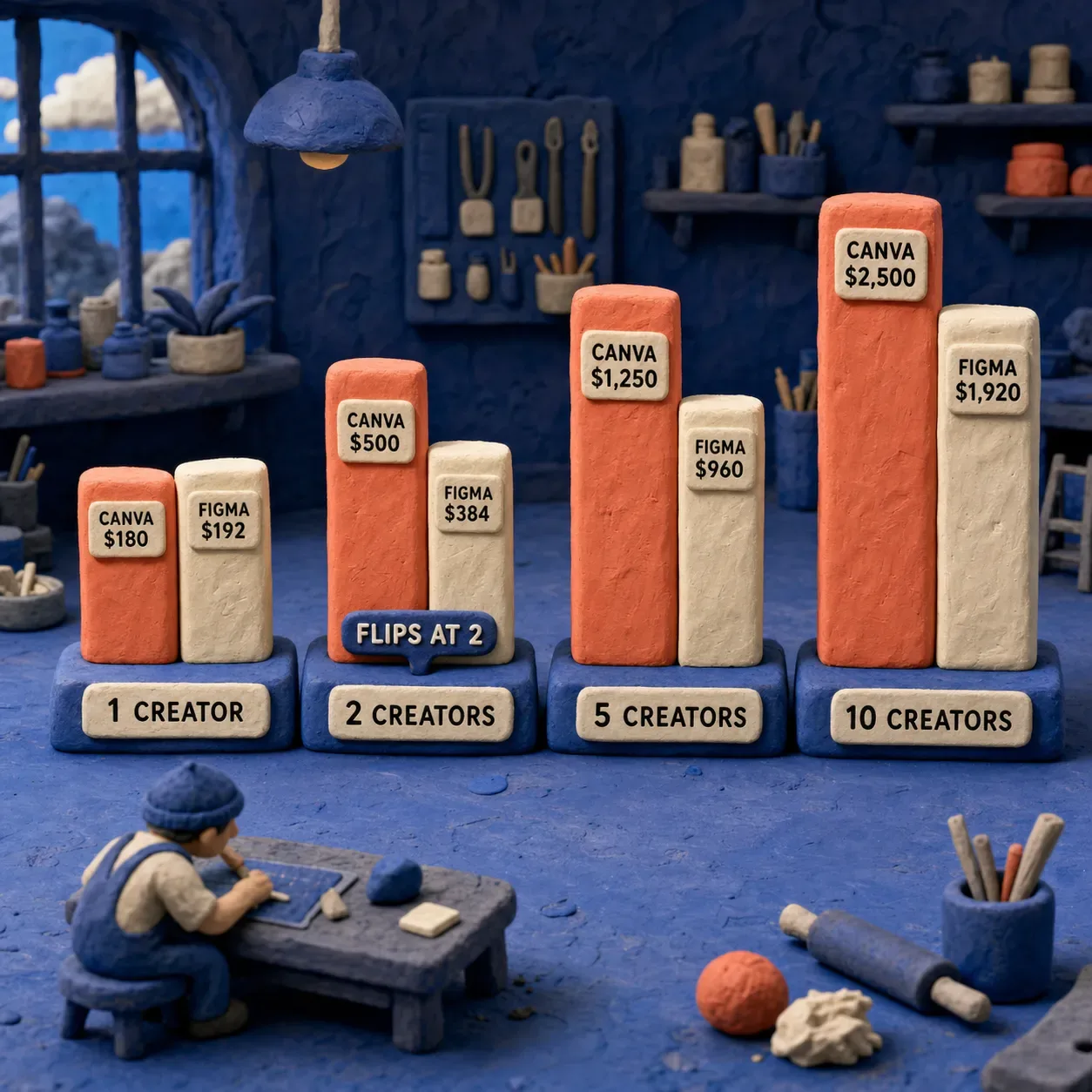
For a 10-person team:
- Canva Business: ~$2,520/year
- Figma Professional (all editors): ~$1,440/year
- Figma Professional (5 editors, 5 free viewers): ~$720/year
If your non-designer team only needs to view and comment on Figma files — and does actual content creation elsewhere — Figma can be surprisingly affordable.
Who Should Use Which

Choose Canva if:
- You’re creating social media graphics, presentations, or marketing materials
- You want professional output in under 10 minutes
- Your team includes non-designers who all need to create branded content
- You need a mobile app for on-the-go editing
- You want AI tools that save time right now, today
- You run a small business or a marketing team
Choose Figma if:
- You’re designing software interfaces, mobile apps, or websites
- You work on a product team that already uses Figma
- You need interactive prototyping for user testing
- You need developer handoff (CSS, SwiftUI, Compose) from designs
- You’re learning UI/UX design and need the industry-standard tool
- You need advanced whiteboarding with FigJam alongside design work
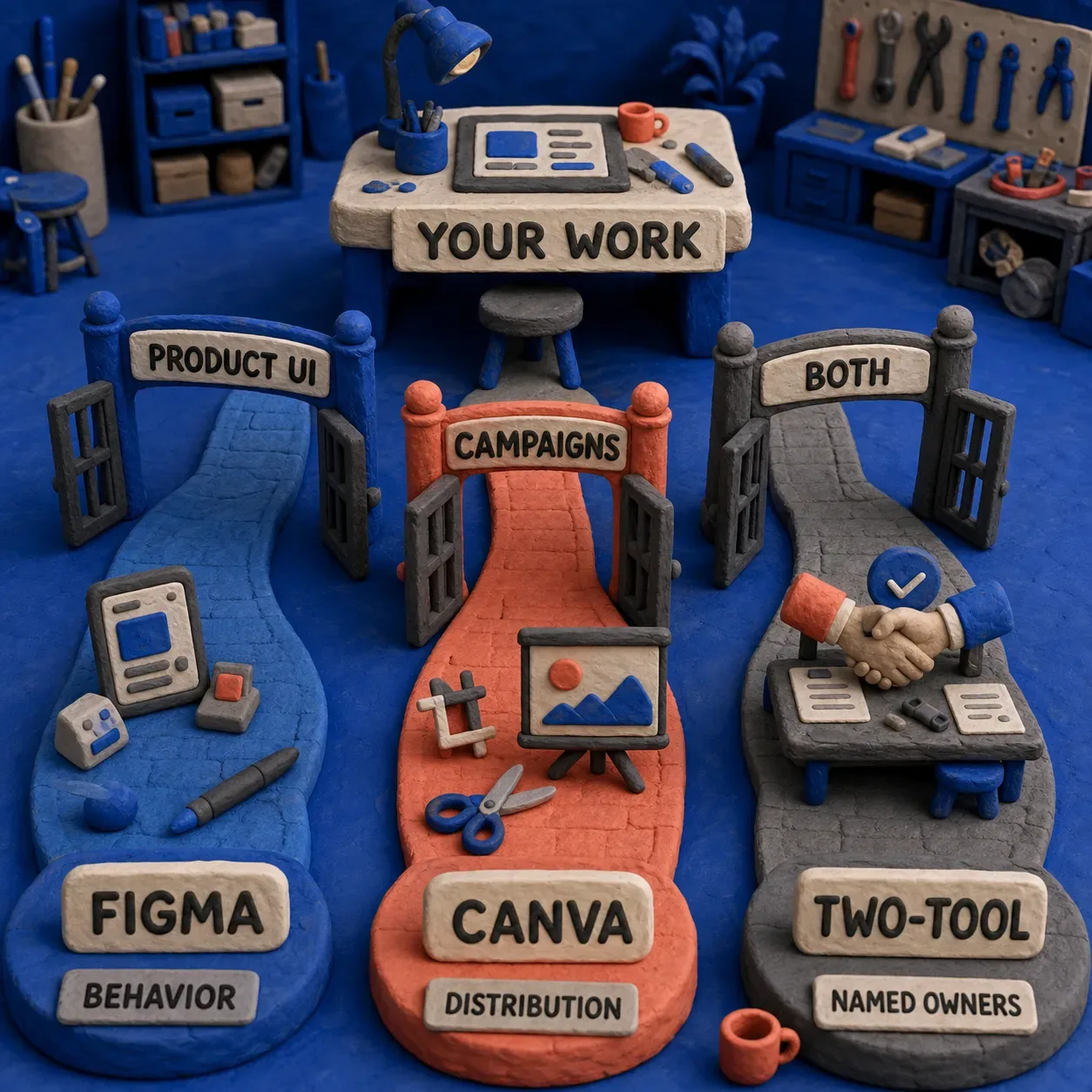
Use both if: Your team does product design (Figma) AND marketing content creation (Canva). Many companies — including large ones — run both. Figma for the product team, Canva for the marketing team. They don’t compete for the same jobs.
If your team uses social scheduling tools alongside design, see our comparison of Buffer vs Hootsuite for social media management.
FAQ
Is Canva or Figma better for beginners?
Canva is significantly better for beginners. You can create a polished social media post or presentation in Canva within 15 minutes of signing up — no tutorials required. Figma has a steep learning curve; most beginners need days of practice before they’re productive in it. Unless you’re specifically learning UI/UX design, start with Canva.
Can Figma do what Canva does?
Technically, you could use Figma to create social media graphics or a slide deck — but it’s inefficient and frustrating compared to Canva. Figma has no built-in stock photos, a tiny template library, and limited AI tools. Canva completes a social post in under 3 minutes. The same task in Figma takes 8+ minutes. Figma is not designed for Canva’s use case.
Is Figma free?
Yes, Figma’s Starter plan is free. It includes 3 Figma files and 3 FigJam files. The main limitation: once you hit the file limit, you need to delete old files or upgrade. Viewers and commenters are free on paid plans, so non-designers reviewing designs on a team’s Figma account don’t need their own paid seat.
Can I use Canva for UI/UX design?
Canva has basic prototyping features — mostly slide-style transitions. It’s not suitable for real UI/UX work. If you need to design interactive app flows, build component libraries, or hand off specs to developers, Figma is the right tool. Canva’s prototyping is fine for a simple presentation that “looks like an app” — not for actual product design.
Which tool has better AI features for non-designers?
Canva’s Magic Studio wins for non-designers. Background removal, AI image generation, Magic Resize (instant multi-platform formatting), and AI video tools are features you’ll use constantly. Figma’s AI tools are useful, but they’re designed for designers managing complex design systems — not for non-designers creating content from scratch.
The Verdict
Here’s the bottom line.
You’re a non-designer who needs to make things look good? Use Canva. It’s not even a contest.
Canva was designed for you. The templates, the AI tools, the stock library, the mobile app — all of it points at your use case. You’ll be productive in minutes and professional in hours.
You’re building software, or you work with a team that does? Learn Figma. Invest the time. It will pay off. The prototyping, developer handoff, and design system capabilities are worth the learning curve if your work requires them.
The mistake people make: thinking these are competing products for the same job. They’re not. Canva is for making content. Figma is for designing products. Most non-designers never need Figma at all — until they get pulled into a product team, at which point their job is usually to view and comment, not design. And that’s free.
Start with Canva. If you hit its ceiling, you’ll know why you need Figma. Most people never do.