Comparisons
Trello vs Asana: Which Project Management Tool is Right for You? (2026)
Trello vs Asana compared on pricing, features, ease of use, and best use cases. Find out which project management tool wins for your team in 2026.
Last updated: October 2026
I’ve used both Trello and Asana to run real projects — a 12-person content team on Trello and a cross-functional product launch on Asana. Here’s the honest verdict: Trello wins for visual, card-based workflows; Asana wins when you need structured task dependencies, reporting, and team accountability. The wrong choice costs you weeks of re-migration.
This guide walks you through pricing, features, ease of use, and integrations so you can pick the right tool in under 10 minutes.
⚡ Quick Verdict: Trello vs Asana
| Category | Winner | Why |
|---|---|---|
| Free plan | Trello | Unlimited cards; Asana caps at 10 users |
| Task dependencies | Asana | Built-in blocking/dependent tasks |
| Visual workflow | Trello | Drag-and-drop Kanban is best-in-class |
| Reporting & dashboards | Asana | Workload, timeline, and portfolio views |
| Ease of use | Trello | No training needed; onboards in minutes |
| Automations | Asana | Rules engine is more powerful |
| Integrations | Tie | Both connect to 200+ tools |
| Best for | Trello | Freelancers, small teams, visual thinkers |
| Best for | Asana | Mid-size teams, complex multi-project work |
💵 Pricing Comparison
As of October 2026. Always verify on official pricing pages before purchasing.
Trello Pricing
| Plan | Price (per user/month) | Key Limits |
|---|---|---|
| Free | $0 | Unlimited cards, 10 boards per workspace, 1 Power-Up per board |
| Standard | $5 (billed annually) | Unlimited boards, custom fields, advanced checklists |
| Premium | $10 (billed annually) | Timeline, Calendar, Dashboard, Map views; unlimited automations |
| Enterprise | $17.50+ (billed annually) | Org-wide permissions, SSO, advanced admin controls |
Asana Pricing
| Plan | Price (per user/month) | Key Limits |
|---|---|---|
| Personal (Free) | $0 | Up to 10 users, unlimited tasks and projects |
| Starter | $10.99 (billed annually) | Timeline, workflow automation, 500 automations/month |
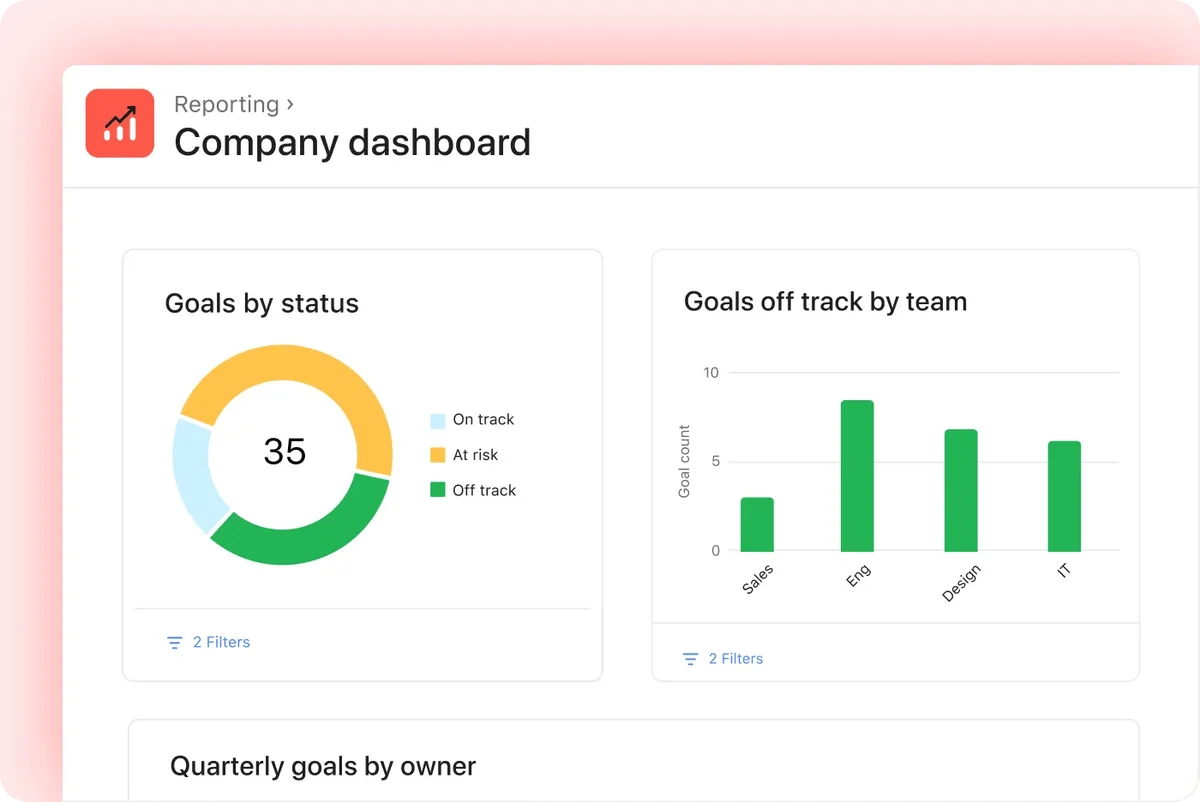
| Advanced | $24.99 (billed annually) | Portfolios, workload, goals, advanced reporting |
| Enterprise / Enterprise+ | Custom pricing | SAML SSO, data export, advanced security |
Pricing verdict: Trello is cheaper at every comparable tier. Asana’s Advanced plan ($24.99/user/month) is 2.5× Trello’s Premium ($10/user/month), but unlocks features Trello simply doesn’t have — portfolios, workload views, and goals tracking.
🖥️ Trello: Features & Interface
Trello’s signature is the Kanban board — columns (lists) containing cards (tasks) you drag from left to right as work progresses. It’s the fastest way to visualise a workflow without any training.
Trello Board View (The Core)
Every Trello project starts as a board. Cards move through lists — typically “To Do → In Progress → Done” — but you can name lists anything. Each card holds:
- Description and rich text
- Checklists with progress bars
- Due dates and reminders
- Labels (colour-coded)
- Attachments (files, links)
- Member assignments
- Custom fields (Standard plan+)
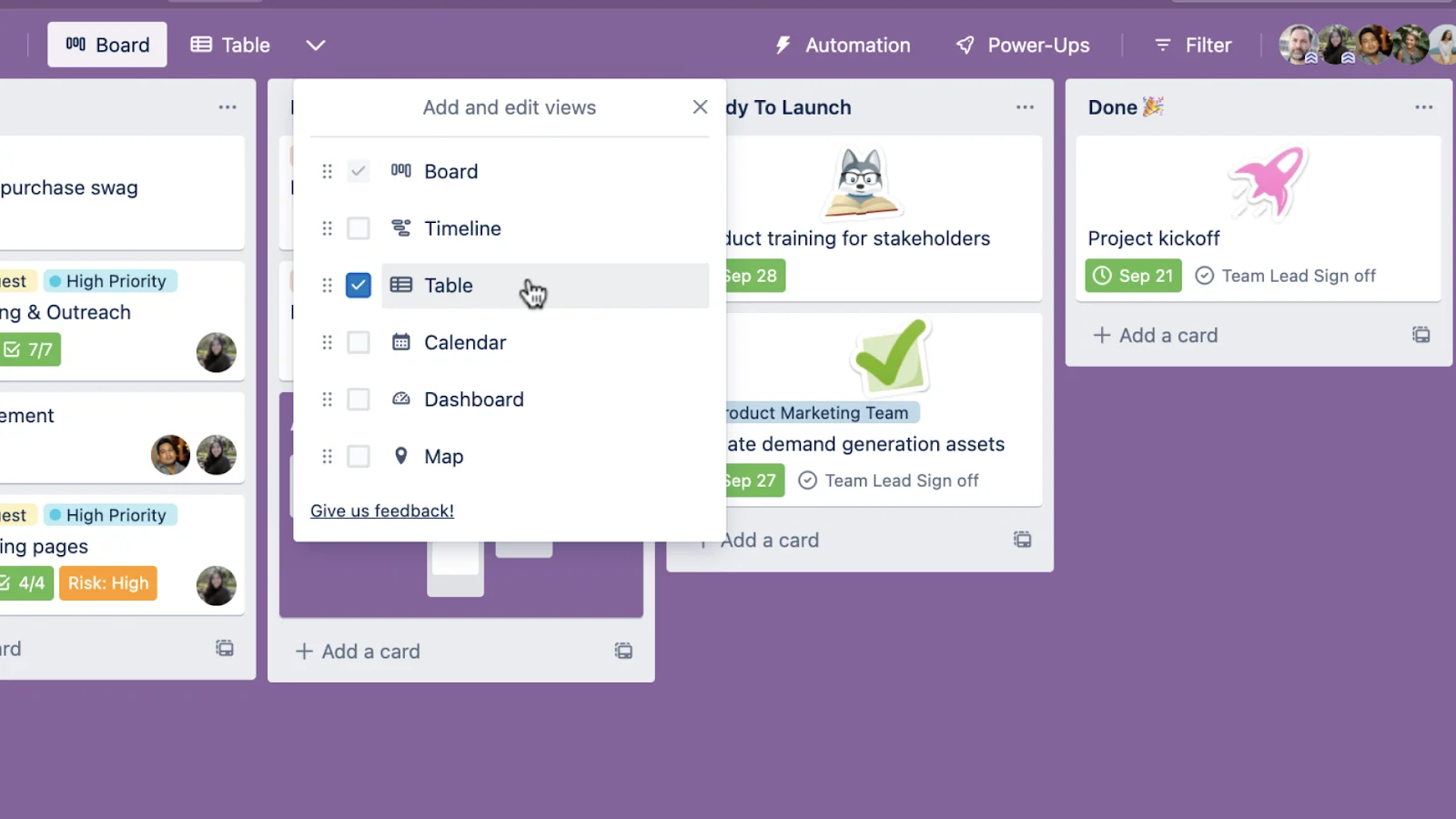
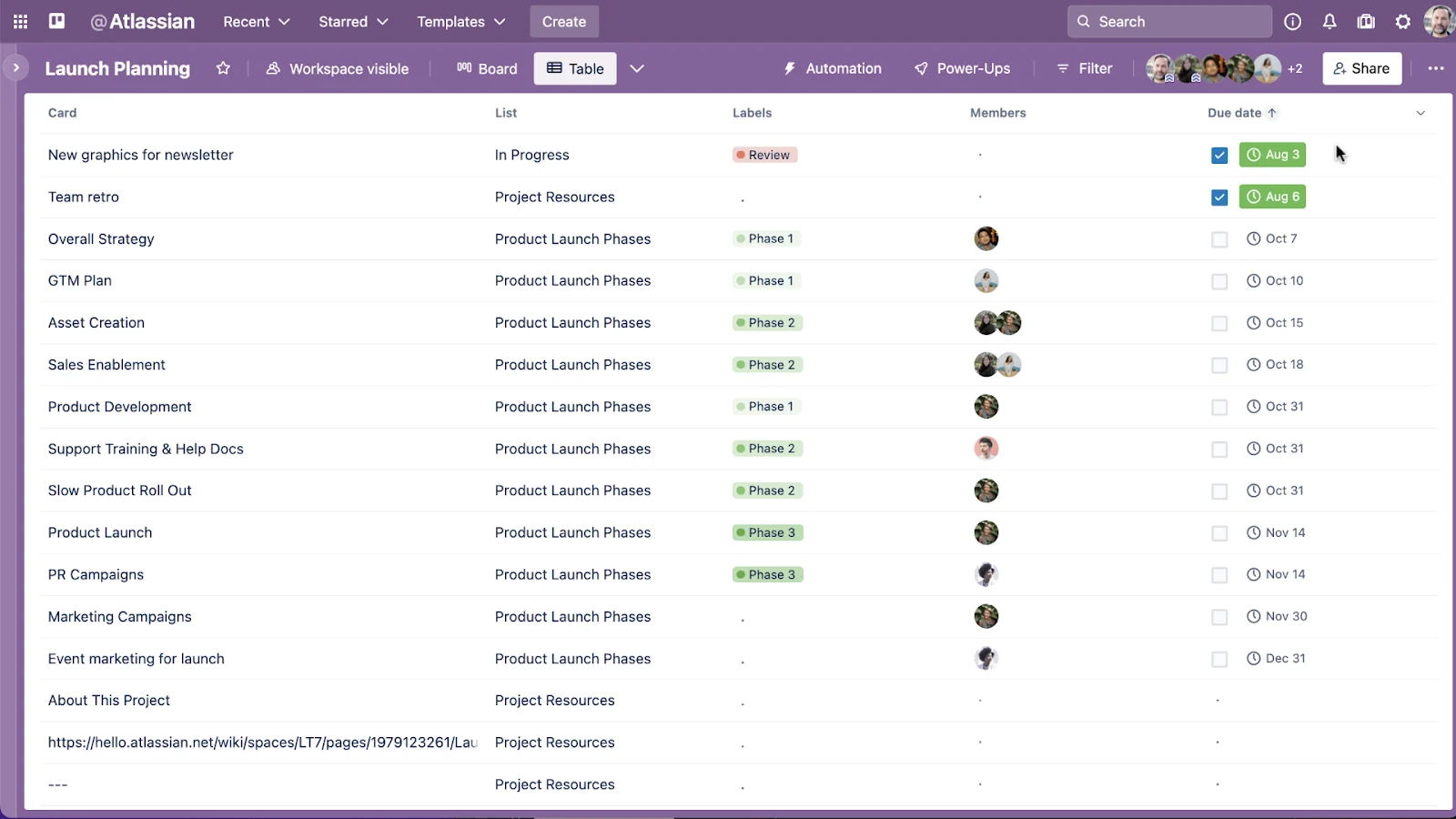
Trello’s Additional Views (Premium)
- Timeline view — Gantt-style bar chart for scheduling and spotting overlaps
- Calendar view — See all due dates on a monthly calendar
- Dashboard view — Charts showing cards per list, cards per member, and due date tracking
- Table view — Spreadsheet layout across all lists (new 2024)
- Map view — Pin cards to a geographic location (useful for field teams)
Trello Automations (Butler)
Butler is Trello’s no-code automation engine. You build rules like: “When a card is moved to ‘Done’, mark all checklist items complete and email the project owner.” The free plan allows 250 command runs/month; Premium removes the limit entirely.
Trello Demo Video
📋 Asana: Features & Interface
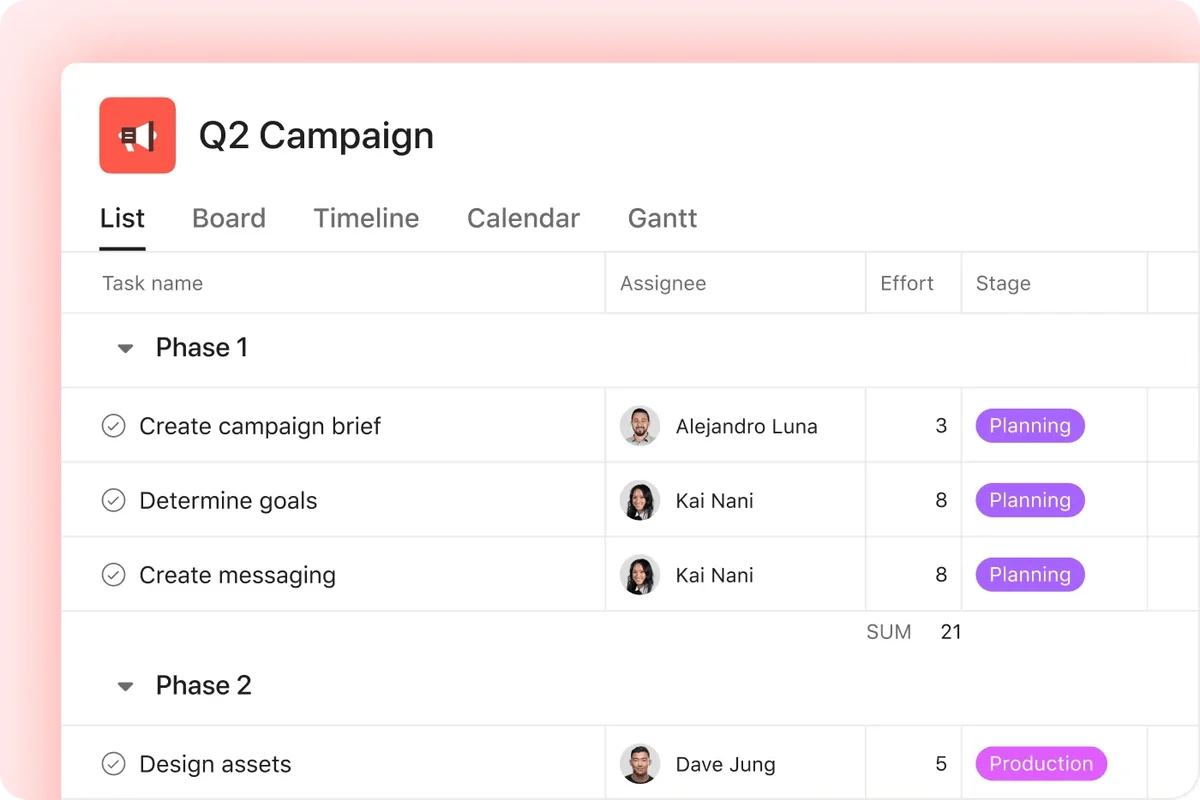
Asana is built around tasks and projects with structure. Unlike Trello’s freeform cards, Asana tasks have a defined hierarchy: tasks live inside projects, projects roll up into portfolios, and portfolios connect to organisational goals.
Asana Task Structure
Each Asana task supports:
- Subtasks (unlimited nesting)
- Dependencies (blocking/blocked-by relationships)
- Multiple project assignments (same task visible in several projects)
- Custom fields (text, number, date, dropdown)
- Approval requests
- Intake forms that auto-create tasks
The task dependency feature is where Asana pulls ahead of Trello entirely. Mark Task B as “blocked by” Task A, and Asana greys out Task B until Task A is complete — critical for complex projects where work order matters.
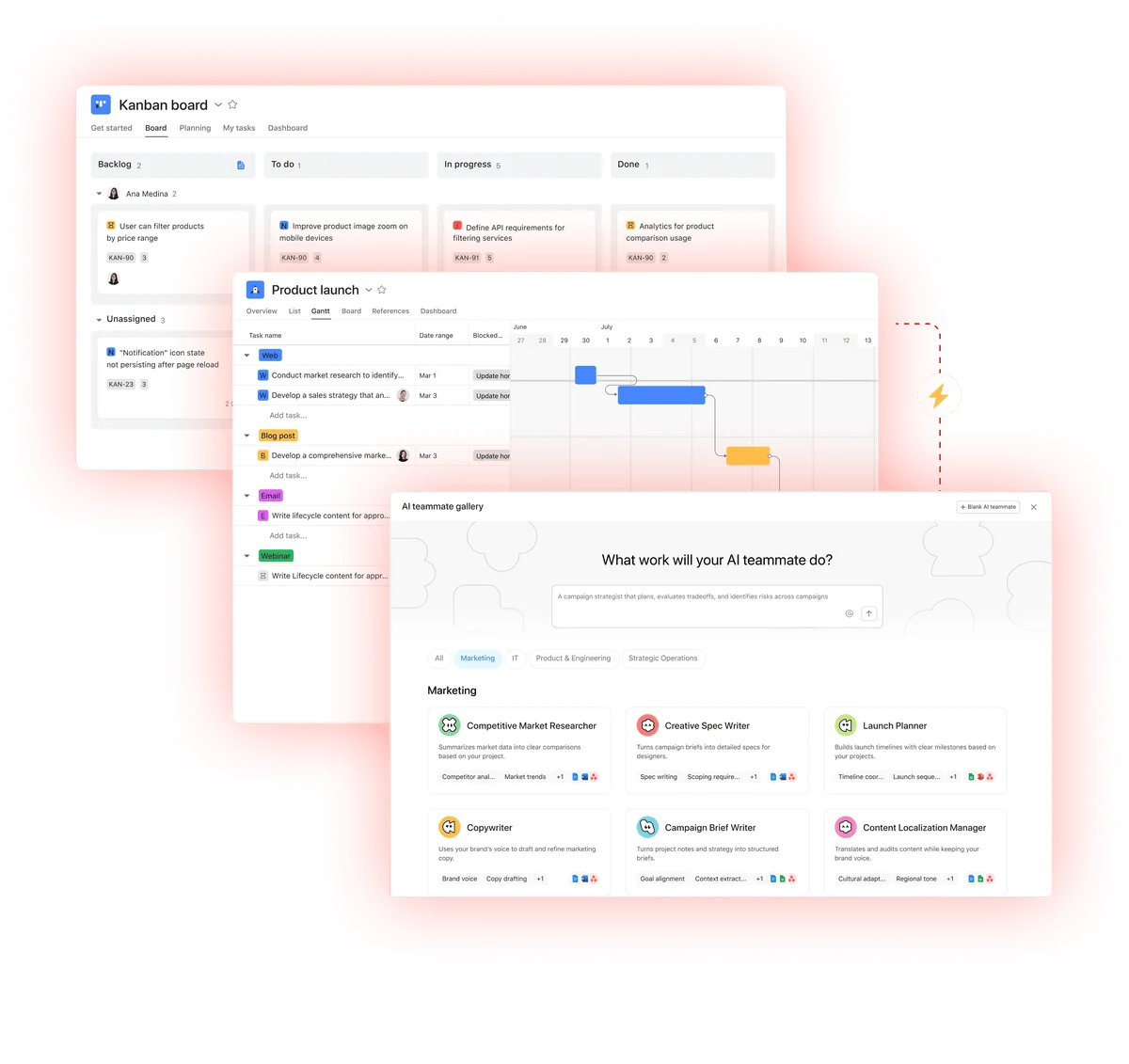
Asana Views
- List view — Default; rows of tasks with sortable columns
- Board view — Kanban columns (similar to Trello)
- Timeline — Gantt chart with dependency arrows shown visually
- Calendar — Due date calendar across a project
- Workload — See each team member’s task load to prevent burnout (Advanced plan)
- Portfolios — High-level view across multiple projects showing status, risks, and progress (Advanced plan)
Asana Reporting & Goals
Asana AI Features (2025)
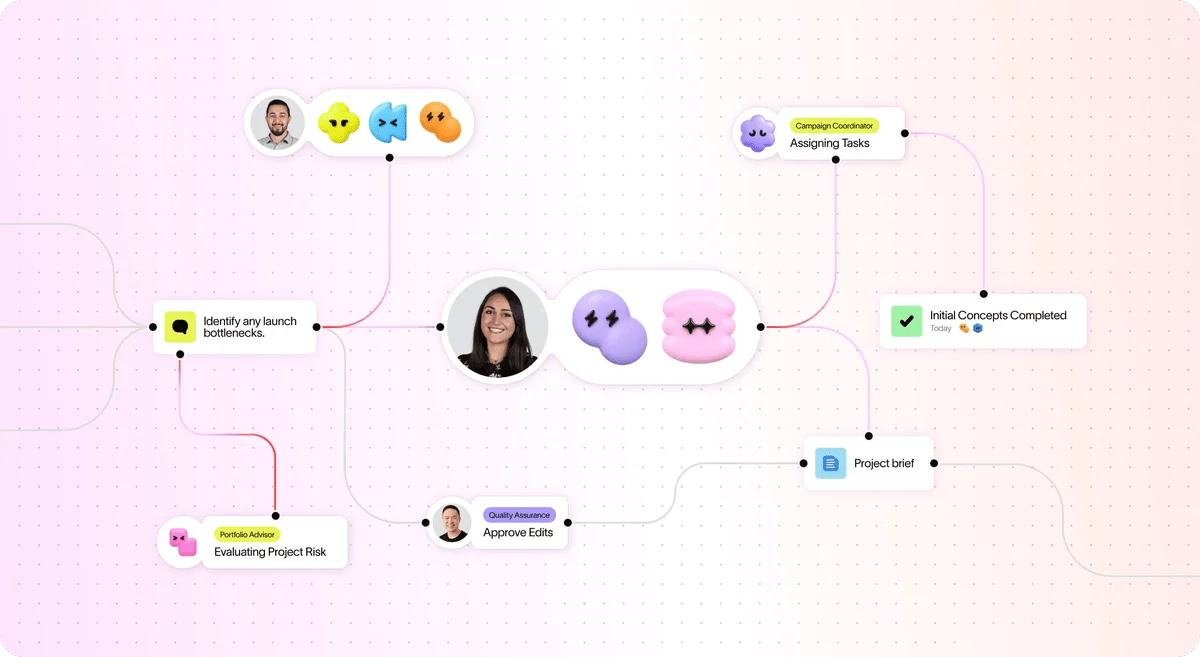
Asana’s AI teammate can summarise project status, draft task descriptions, suggest task assignments based on past work, and surface at-risk tasks automatically. This is built into paid plans and is a genuine differentiator for teams that run 10+ concurrent projects.
Asana Demo Video
🔧 Features Head-to-Head
| Feature | Trello | Asana |
|---|---|---|
| Kanban board | Yes — Best-in-class | Yes — Available (Board view) |
| Task dependencies | No | Yes — Built-in (Starter+) |
| Subtasks | Yes — Via checklists | Yes — True nested subtasks |
| Timeline / Gantt | Yes — Premium only | Yes — Starter+ |
| Workload view | No | Yes — Advanced only |
| Portfolio view | No | Yes — Advanced only |
| Goal tracking | No | Yes — Advanced only |
| Automations | Yes — Butler (limited free) | Yes — Rules engine (Starter+) |
| AI features | Partial | Yes — AI Teammate (paid plans) |
| Intake forms | Partial — Via Power-Up only | Yes — Built-in (Starter+) |
| Guest access | Yes — Free on all plans | Yes — Free guests (limited) |
| Mobile app | Yes — iOS & Android | Yes — iOS & Android |
| Offline access | Yes — Limited mobile | Yes — Limited mobile |
🏃 Ease of Use
Trello: Onboard in 5 minutes
Trello has the simplest onboarding of any project management tool I’ve tested. You sign up, create a board, add three lists (“To Do”, “Doing”, “Done”), and start adding cards. There’s nothing else to learn on day one. The visual metaphor — sticky notes on a wall — is instantly understood by anyone.
The downside appears as teams grow. With 50+ cards across 6 lists, Trello boards become visually noisy. There’s no native way to sort tasks by priority or filter by multiple labels simultaneously without a Power-Up.

Asana: Steeper curve, higher ceiling
Asana takes 1–2 hours to get comfortable with. The concepts of sections, subtasks, dependencies, and multi-homing tasks across projects need explanation. Most teams need a short training session or walkthrough video before they’re productive.
Once past that initial curve, Asana is extremely powerful. Managers love the “My Tasks” view, which shows every task assigned to them across all projects sorted by due date. The “Inbox” notification system is excellent at surfacing what actually needs attention versus what’s just noise.

🔗 Integrations
Both tools connect to 200+ apps. The practical difference is in depth, not breadth.
Trello Integrations (Power-Ups)
Trello extends via “Power-Ups” — plugins that add features to a board. The free plan limits you to 1 Power-Up per board (removed on Standard+). Popular ones include:
- Jira — Link Trello cards to Jira issues
- Slack — Get card updates in Slack channels
- Google Drive — Attach Drive files directly to cards
- Zapier / Make — Connect to thousands of additional apps
- Calendar Sync — Two-way sync with Google Calendar
Asana Integrations
Asana’s native integrations are deeper and include bidirectional syncing with tools like Salesforce, Zoom, and Microsoft Teams. Key integrations:
- Slack — Create Asana tasks directly from Slack messages
- Microsoft Teams — Full task management within Teams tabs
- Salesforce — Sync deals to Asana projects
- Google Workspace — Attach Drive files; view Asana tasks in Gmail
- Zoom — Create tasks from meeting notes
- Zapier / Make — Available for further automation
🤝 Who Should Use Which Tool?
Choose Trello if you…
- Work alone or with a small team (1–10 people)
- Run visual, card-based workflows (content pipelines, product backlogs, editorial calendars)
- Want to be up and running today with zero training
- Have a tight budget and the free plan is genuinely enough
- Your work doesn’t require task dependencies
Choose Asana if you…
- Manage a team of 10+ people across multiple projects
- Need task dependencies (Task B can’t start until Task A is done)
- Want portfolio-level visibility across all projects
- Run complex processes like employee onboarding, campaign launches, or product releases
- Need workload management to prevent team burnout
- Want AI-powered project summaries and risk detection
Final Verdict
Trello is better for simplicity; Asana is better for complexity.
If you’re a freelancer, a small startup, or a team running a single pipeline — Trello’s free plan is one of the best deals in software. The drag-and-drop board is genuinely satisfying to use, and the Standard plan at $5/user/month removes almost every limitation that matters.
If you’re managing 5+ concurrent projects, need your team to see exactly what’s blocked and why, or want executives to see portfolio-level status without asking for it — Asana is worth the higher price. The task dependency system alone saves hours of “is this done yet?” Slack messages.
The one case where I’d tell you to skip both: if you need native time tracking, resource planning, or billing, look at dedicated project management tools built for agencies. If you’re specifically weighing Asana against other mid-tier options, our Monday.com vs Asana comparison breaks down how they differ on pricing, automations, and team fit.
If you’re also choosing a team communication tool at the same time, our Slack vs Microsoft Teams comparison is a good next read — many teams pick their project management and communication platforms together.
If your team uses Jira or is evaluating Linear for software development, our Linear vs Jira comparison for software teams covers how the two tools differ on sprint planning, GitHub integration, and pricing.
❓ Frequently Asked Questions
Is Trello free forever?
Yes. Trello’s free plan has no time limit and supports unlimited cards and members. The main free plan restrictions are 10 boards per workspace and 1 Power-Up per board. You can run a real team on it indefinitely.
Can Asana replace Trello?
Asana includes a Board view that works like Trello. If Trello is your only requirement, Asana can replace it — but you’d be paying more for features you won’t use. Most teams that switch from Trello to Asana do so specifically because they’ve outgrown Trello’s simplicity.
Does Trello have task dependencies?
No. Trello has no native task dependency feature. You can simulate it with checklists or card linking via Power-Ups, but there’s no formal blocking/blocked-by relationship. This is the primary reason teams move to Asana.
Which is better for remote teams?
Both work well for remote teams. Asana has an edge for async communication because its task comments, status updates, and inbox notifications create a clearer audit trail. Trello is better for teams that run daily standups and update boards in real time.
Can you use Trello and Asana together?
Yes, via Zapier or Make. You can trigger an Asana task whenever a Trello card moves to a specific list, for example. But this adds complexity — most teams eventually standardise on one tool.
Which tool has better customer support?
Asana offers live chat support from the Starter plan upward. Trello’s support is email-only for paid plans; free users are limited to community forums. If support response time matters, Asana has the edge.